
- What Makes Ongig Different from Popular Text Editors such as Microsoft Word and Google Docs - March 2, 2026
- Benefits of Using Ongig Job Description Software for Hiring Teams - February 4, 2026
- 9 Helpful Trends in Recruiting to Watch for in 2026 - February 2, 2026
An effective job description sets a good foundation for your hiring journey.
But there’s no way to create good JDs if you’re using tools such as Microsoft Word and Google Docs, which only help with formatting and spell check for your JDs.
You need a tool that helps simplify your JD management process. A platform that helps with JD creation, editing, feedback, revising, collaboration, and approval of the JD.
So in this article, I’ll help you understand what makes Ongig different from popular text editors such as Microsoft Word and Google Docs when it comes to writing JDs. Let’s dive in.
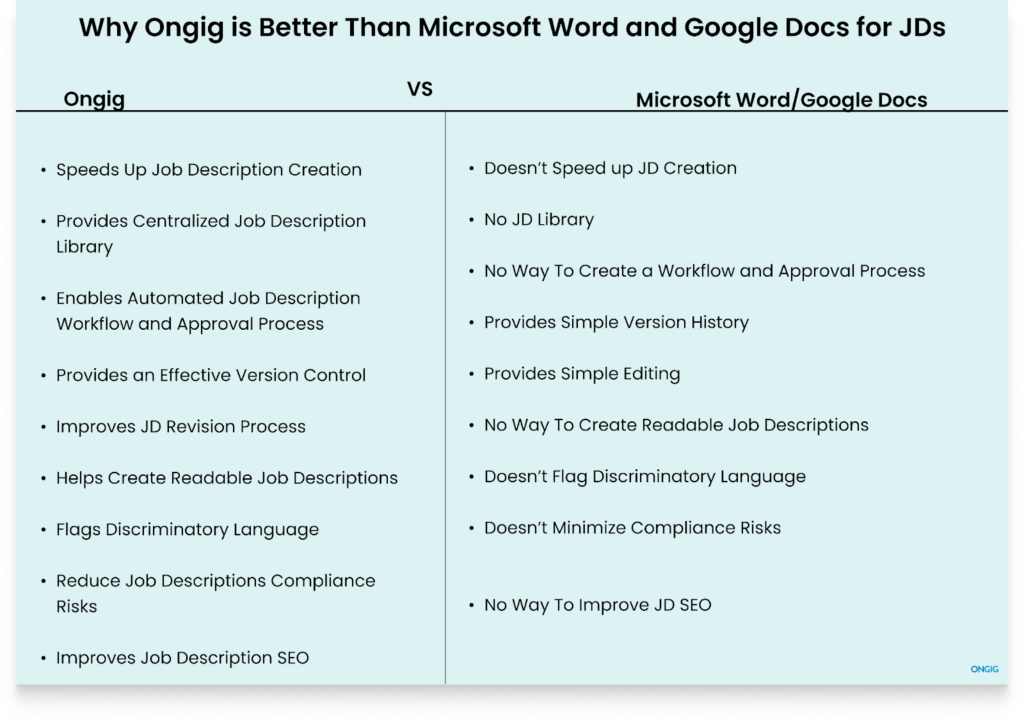
1. Ongig Speeds Up Job Description Creation With an Automated JD Builder
Writing JDs with either Microsoft Word or Google Docs means you start the creation process from scratch every time. So it’s you with a blank white page, with no templates of previously approved JDs to use for inspiration.
And if you manage to find a previously approved JD document to use as a template, it means you’ve searched through different folders, shared drives, and communicated back and forth with your colleagues, hoping they have access to the latest approved JD.
So in the end, you:
- Take a long time to finish writing the JD
- Experience different collaboration issues while drafting the JD because the two tools don’t provide a way to set up an effective collaboration process
- Chase JD approvals each time, since you can’t build a good workflow with the two tools
- Have feedback scattered in different email threads
And once you count the weeks you’ve used to build the JD, you find that it’s a lot of wasted time.
How Ongig Job Description Software Helps
Creating JDs with Ongig’s Automated Builder is quick. First, type your job title into the software. Here’s how the process works.
In Text Analyzer, open a new job, click the “Write Sample” button, and write in a title, “Web Developer,” for instance:
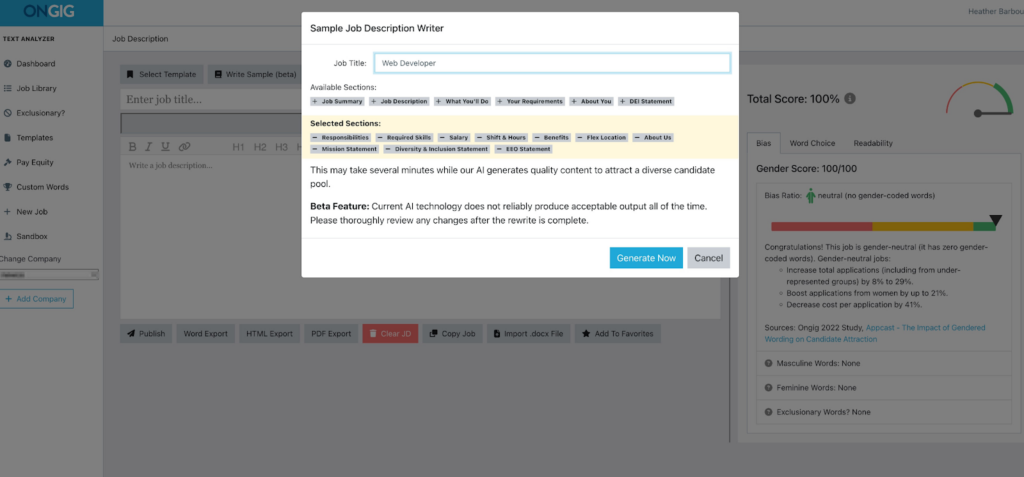
Then choose the sections you want to include in your JD (based on your customized templates or a template the software recommends based on research) and click the “Generate Now” button:
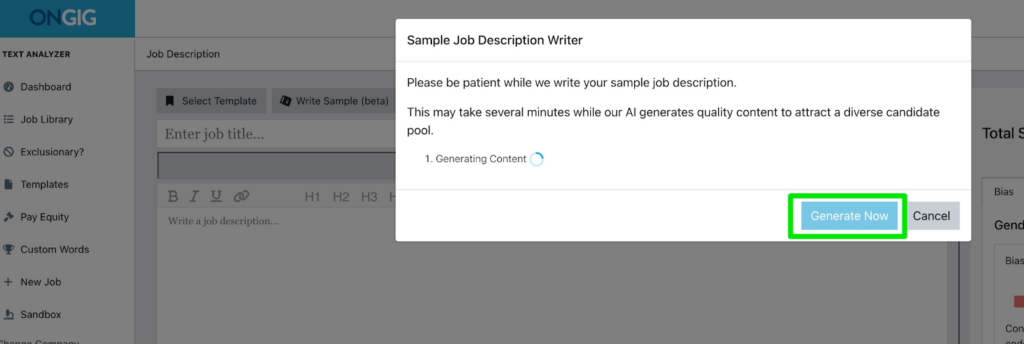
Then, Text Analyzer leverages AI to build a Web Developer job description to use. But if anything is missing in the JD that you want to include, you can edit the draft to include that:
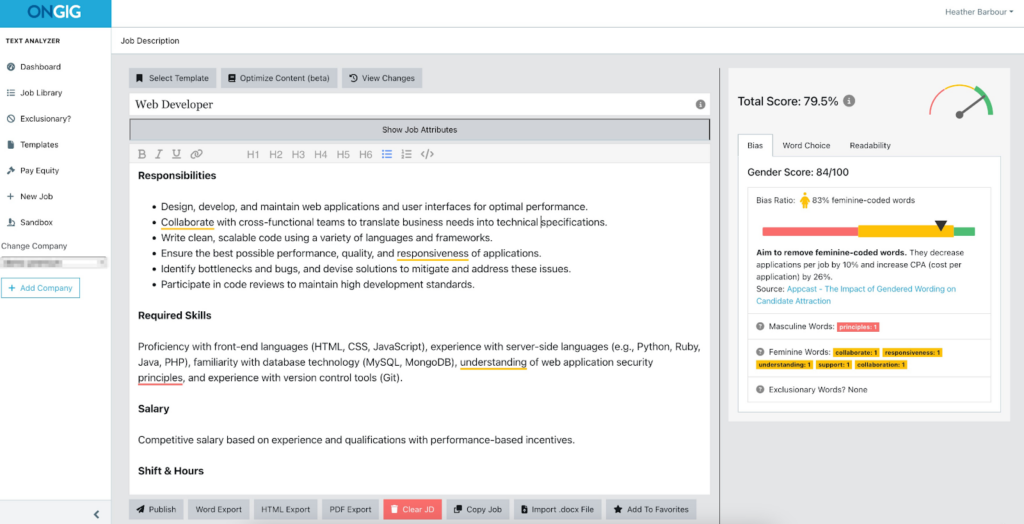
Next, to minimize masculine bias and shorten long sentences in the job description, you’ll click “Optimize Content” and the “Rewrite Now” button:
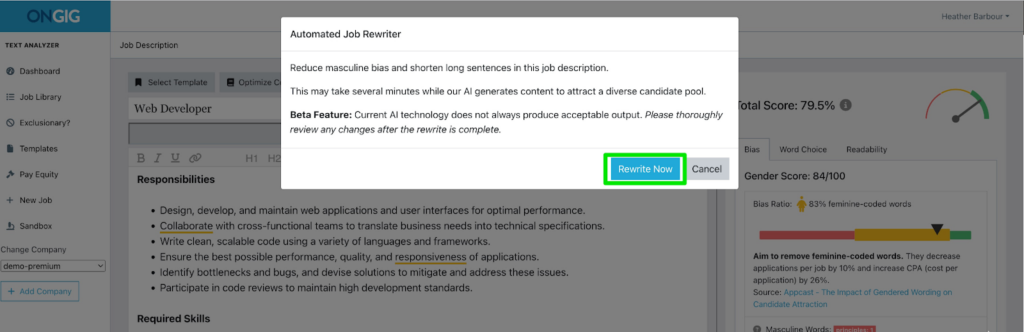
Next, the software leverages AI to boost your draft. You’ll notice a JD score boost. The total score for this job description rose from 79.5% to 83.3%.
And to further boost the draft, click to replace any feminine terms for more JD gender neutrality. And see the score rise even more.
You can also click to replace any other type of bias the tool has flagged. Currently, Ongig flags 12+ types of bias based on sex, gender, mental health, religion, and more. (This JD has none.)
Plus, also click “View Changes” to see a comparison of your JD versions:
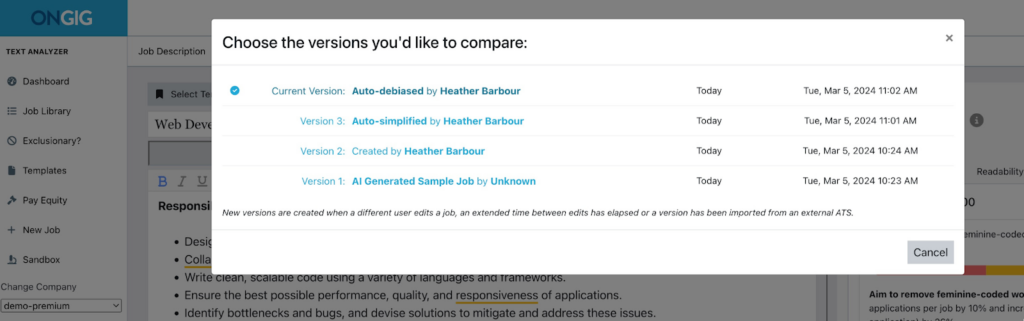
Once you’ve completed reviewing the JD, easily export a copy of the job post to PDF, HTML, or Word. And for our premium and professional plans, you can push the job ad directly to your ATS through API integration.
TIP: This video details how this process works in a few minutes:
2. Ongig Provides Centralized Job Description Library
Microsoft Word and Google Docs aren’t built as specialized, centralized storage for JD writing teams. Instead, they are built as standalone documents that support writing and editing.
But a job description management process needs a centralized repository so everyone can access all the organization’s JDs from one place.
So when using these two tools for your JDs, you find yourself having to go through different files to identify the JD you want. And this is because you don’t have a way to search and filter for what you want to find.
Plus, you find yourself having JDs with inconsistent standardization practices because you don’t have a central place to compare your JDs to understand any consistency issues.
How Ongig Job Description Software Helps
Ongig creates a live cloud library for your JDs that smoothens your JD management journey in these ways:
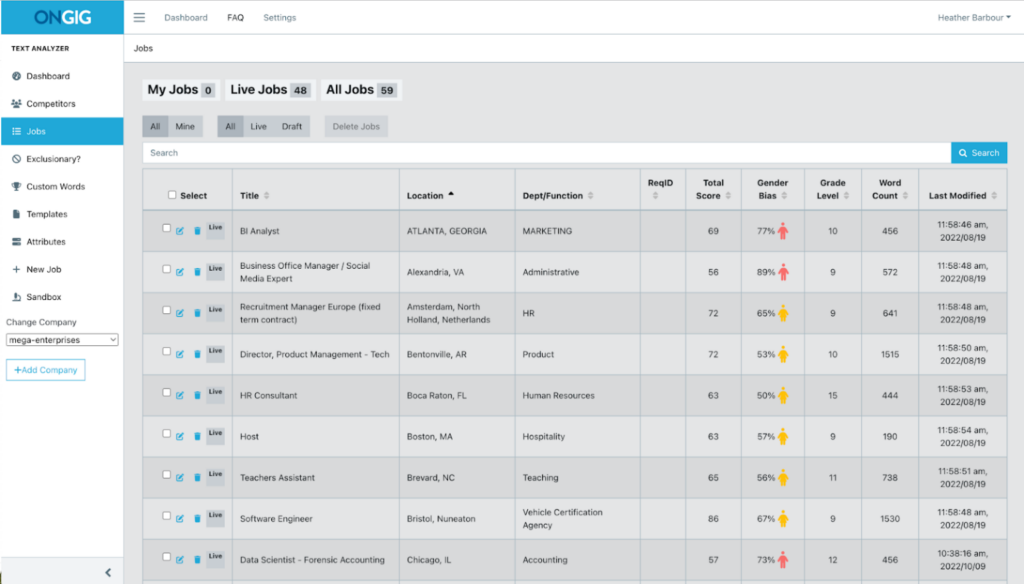
- Develops a Searchable Library: Since all your JDs have a central repository, you can search and filter your JDs by department, keywords, title, or by using any specific words you want to use. So you don’t have to go through endless folders and files like in Microsoft Word and Google Docs to get what you want.
- Quick JD Drafting: Since you have a library of previously written JDs, you don’t write your first JD draft from scratch. Instead, you use past JDs as inspiration and apply the common sections to that JD you’re writing.
- Efficient JD Archiving: A centralized JD system stores your JDs’ history. Anyone with access can see the lifecycle of a role over time. This is critical if the JD is ready for revision or editing.
- Easy Template Creation: A job description library enables teams to build and store templates that they can apply to different JDs. This way, you don’t start building your JDs from scratch. And if you want to edit a bulk of JDs, you can easily apply a template you created.
3. Ongig Enables Automated Job Description Workflow and Approval Process
Microsoft Word and Google Docs treat job descriptions as simple and static documents. The two tools aren’t designed to mirror the comprehensive JD management process.
They consider the job description management process as a writing phase. And this is where challenges arise because job description management is a comprehensive process. It involves various steps such as drafting, reviews, revisions, compliance checks, and several approval steps.
The two tools don’t have a way to set up a coordinated workflow and approval process. This brings issues such as:
- Different stakeholders do endless review cycles manually
- Team members find themselves in endless email chains because there’s no proper feedback medium
- Chasing down JD approvals
- Manually informing the next team member that their input turn time has reached
And all the above collaboration issues lead to publishing a JD with conflicting details, forgetting to add important information, and publishing the JD late.
How Ongig Job Description Software Helps
Ongig provides efficient user control capabilities that help define collaboration and approval steps in these ways:
- Establish Role-Specific Access Permissions
The tool makes it easy for everyone to have specific permissions. So they all know their input and the time to turn in work for review. This helps eliminate any confusion at the last minute, wondering who was supposed to do what and what their deadline was.
image
- Simplify Building of a Smart JD Workflow
The tool helps build any type of automated, intelligent JD workflow process you want. For instance, you can build an intelligent JD conditional workflow that states that once HR reviews a JD, the next team is marketing, and the following person is the recruiter.
- Personalized Email Alerts
Unlike Google Docs and Microsoft Word, where you have to dig through endless email threads for approvals or to notify someone when their turn reaches, with Ongig, you create an automated email notification.
And the correct person receives the email with a link to the JD and the deadline. And all of this is tied to user roles; no person gets CC’d on work they aren’t responsible for.
- Progress Tracking Dashboard
The lack of visibility in any JD approval process leaves you in the dark because you don’t understand the next steps. Ongig makes this easy by providing a dashboard that shows your JDs in review, people who’ve finished their work, the step delaying approval, and the duration of each specific step.
And you also get reports showing your team’s average approval time.
4. Ongig Provides an Effective Version Control Process
Version control is one of those areas of job description management that you don’t notice its importance once you start writing many JDs. So if you’re writing a few JDs using either Microsoft Word or Google Docs, you experience a few version control challenges.
But once your JD scale grows, you start noticing issues such as JDs with complicated naming, not knowing which JD is the latest to work on, and not knowing which JDs are ready for review.
Plus, with version control chaos, you can’t understand who on your team has to work on what and at what time. So you can’t even estimate the time you’ll publish the JD.
How Ongig Job Description Software Helps
Ongig provides advanced Version Control functionalities that help in:
- Job Description Version Comparisons: The software allows you to compare your JDs to understand which one is better. Plus, you also get restoration capabilities to return to the JD you want if you’ve made any unintended changes. This helps you understand which JD will perform better.
- Comprehensive Audit Trails: The software logs the person who made changes, the time of the change, and all changes they made. This is crucial if your organization experiences compliance challenges related to JDs in the future.
- Efficient Collaboration: The tool allows you to create a JD workflow process so each person knows what they’re responsible for. Plus, all of this work occurs in a single place, so there are no issues of scattered documents.
5. Ongig Improves JD Revision Process
Chances are that the JD you wrote two years ago doesn’t reflect the current responsibilities and tasks the employee is performing.
For instance, let’s say you hired a social media executive four years ago, and in your JD, the only main social accounts they were to work with were Instagram and Meta.
But now the social media space has changed, and they are handling more tasks, new platforms, and creating short videos that weren’t the norm two years ago.
So this shows the importance of updating and revising JDs to reflect role changes, market changes, organizational demands, and compliance changes.
But doing this update and revision process using Google Docs and Microsoft Word is chaotic because the two tools don’t focus on the extensive JD process. So you experience different challenges, such as:
- Not knowing who the editor is for a certain JD section because the two tools group everyone as “editor.”
- Feedback chaos because you have to go through threads of comments to understand your revision tasks
- Approval chaos because the two tools don’t have a way to set a proper approval workflow
- Documents are scattered everywhere, so you can’t understand which is the current document for editing
In the end, you find yourself still publishing a JD with the same errors as the last time. So you begin the process afresh.
How Ongig Job Description Software Helps
Ongig simplifies your JD revision process through these approaches:
- JD Centralized Library: A central repository for all JDs ensures your JDs aren’t scattered everywhere. And you’re able to edit and revise them in one place instead of jumping from one file to another.
- JD Version Comparisons: Easily see any version of a JD you’ve written. So you all understand the reasons for the changes. And you can understand who made a change, the time, and the date the changes happened.
- Smart Templating: If you have many JDs to edit and review, Ongig makes it easy to edit them at once. And you do this through “smart templating”. Meaning you apply a single template for all your JDs to update at once. This is critical if you want to update and revise one section in almost all JDs, so you don’t have to revise one by one.
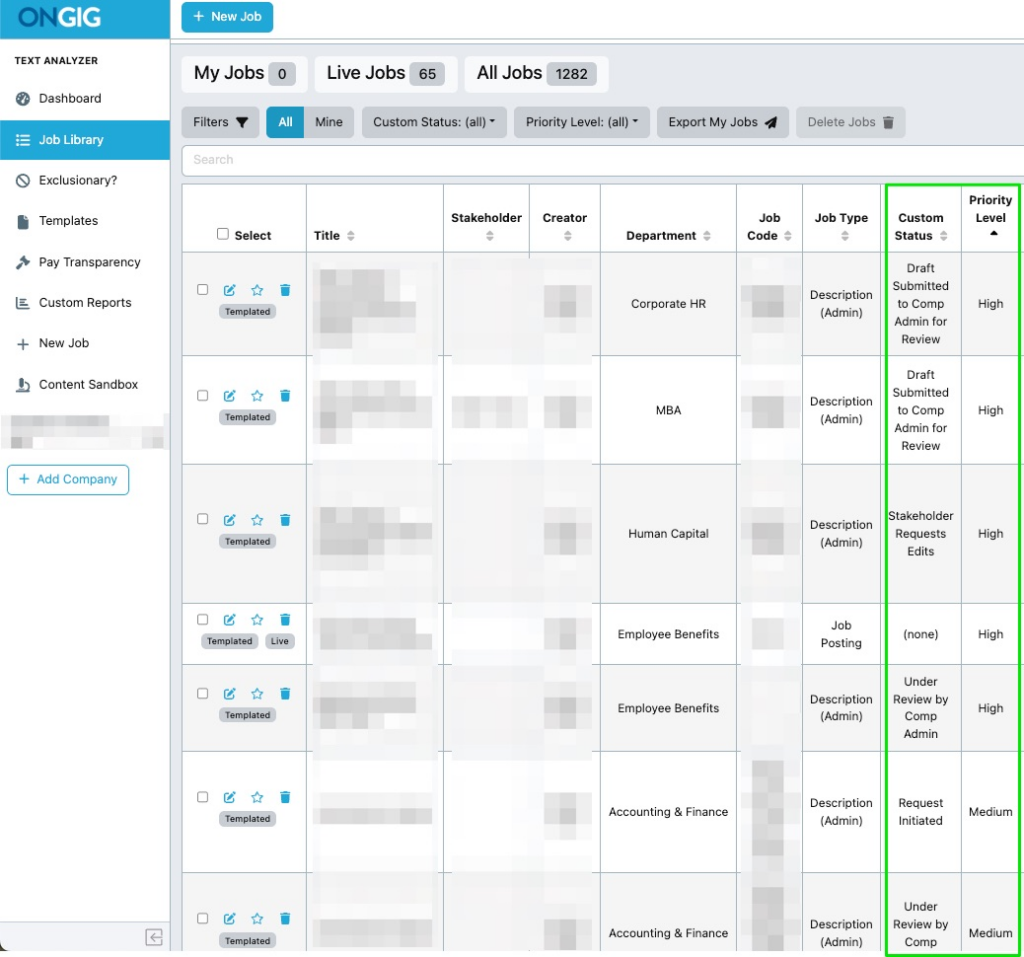
- Workflow Steps Revision Visibility: Easily see the steps of revision your JD is at because Ongig makes it simple to build a workflow to identify the stage you’re at. Plus, you get to see the priority level the JD is at. This is either a high, medium, or low priority level.
6. Ongig Helps Create Readable Job Descriptions
Microsoft Word and Google Docs only offer basic guidance on grammar. The two tools help you create bullet points, do spell check, and perform simple formatting.
But there’s no way they can help you identify that your JD is:
- Full of jargon and complicated words for a candidate to understand
- Full of blocks of paragraphs that make a candidate bored when reading a JD
- Too long
- Not using inclusive words.
For instance, a hiring manager will write a complete JD. Neither Microsoft Word nor Google Docs will inform them that the JD has more than 20 jargon words that make it hard for anyone reading the JD to understand.
How Ongig Job Description Software Helps
The tool employs different approaches to create readable JDs:
- Real-Time Suggestions
Ongig provides live recommendations to make your JD easy to read. For instance, it recommends the correct JD length, proper formatting, and highlights jargon words. Then it provides an analytics score that highlights the readability of your JD. With this score, you can identify anything that’s making your JD hard to read.
- Flags Complex Words in Job Descriptions
Many people find it challenging to read words with multiple syllables.
Use of multiple syllables creates complex words. So, for JDs, use fewer syllables to create a simple word to understand instead of a long, complex word. For example, instead of “is responsible for” use “handles, or instead of “personnel” use “team”.
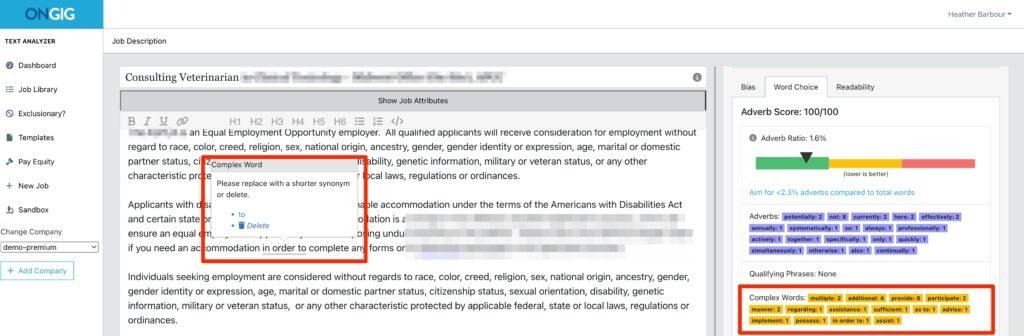
For instance, the JD below uses the phrase “in order to”. Ongig highlights “in order to” as a complex phrase because it has a synonym (“to”). So using “to” saves you 3 syllables, and it’s easy to read.
- Flagging Adverbs In Your JDs
Adverbs don’t add much meaning to your JDs.
They take up space in JDs and make it long without adding any meaning. Some examples of used adverbs in JDs are potentially, accordingly, properly, closely, and primarily.
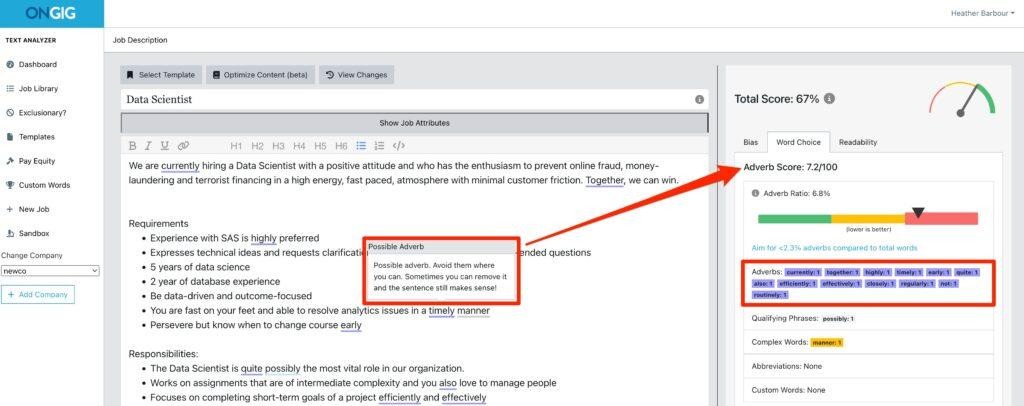
For instance, the job posting below for a Data Scientist has adverbs (the underlined words). Ongig highlights that 6.8% of the words in the JD below are adverbs. The tool gives the JD a low adverb score (7.2/100) because the adverbs don’t add value to the job description.
7. Ongig Flags Discriminatory Language
Your job descriptions’ language sometimes unintentionally turns away some candidates.
But unfortunately, when using tools such as Microsoft Word or Google Docs to create your JD, there’s no way to know when you’ve used discriminatory language.
And most times, the one writing the JD doesn’t even know that they’re unintentionally using non-inclusive language. You’ll unintentionally find yourself discriminating against candidates based on their age, gender, the school they attended, disability, and cultural status.
For instance, not every person creating a JD will understand that using words such as ‘walk” or “stand” is discriminatory towards candidates living with a disability. Because the two words seem like normal words to use in a JD.
How Ongig Job Description Software Helps
Ongig reduces bias in JDs in some of these ways:
- Live Flagging of Discriminatory Language: As of 2026, Ongig scans and flags 12+ different types of biased words related to gender, race, disability, LGBTQ+ status, elitism, mental health, and more.
- Recommends Inclusive Words: After flagging the discriminatory words, the tool provides you with inclusive synonyms for replacement.
- Bias Inclusion Score: The software provides a score to show the inclusiveness of your JD. This gives you more clarity to remove any biased words you might have missed.
8. Ongig Helps Reduce Job Descriptions Compliance Risks
Compliant JDs help prevent your organization from facing legal issues. But labor laws change frequently.
And if you’re using Microsoft Word or Google Docs to create your JDs, high compliance risks occur because these two tools aren’t built to flag any compliance issues in JDs.
So you’ll write a JD that contains probably more than 8 compliance leaks, and the two tools won’t flag anything.
How Ongig Job Description Software Helps
Here’s how Ongig secures your JDs from compliance leaks:
- Organized Approval Workflows: The software lets you create a JD approval workflow that also includes legal review. With this organized approval structure, no compliance leak goes unnoticed.
- Salary Transparency: Including salary range in JDs has become mandated by some states. So the software automatically notifies you if your JD is missing a salary range.
- Automated Inclusive Language Optimization: As you create your JD, the software scans and flags any discriminatory words or phrases that might get you into compliance challenges. Then the tool provides fair terms to use.
- JD Audits: The software tracks JD changes and edits with a timestamp. Plus, it shows who did the edits. This audit trail is critical during a legal issue because it helps everyone understand how the compliance leak occurred.
9. Ongig Improves Job Description SEO
Even if you create the best JD and qualified candidates can’t find it, then you’ve lost the battle.
That’s why it’s critical to focus on creating SEO friendly JDs. But if you’re using Microsoft Word and Google Docs to build your JDs, you won’t get any JD content guidance.
The two tools will only help with grammar and a few formatting changes. But they don’t have a way, for instance, to help you understand that your job title isn’t what candidates are searching for.
And if you notice your JDs aren’t helping you attract the right candidates, you’ll resort to looking for external hiring help. So you’ll spend more on recruitment, while you could have fixed your JD SEO.
How Ongig Job Description Software Helps
Ongig uses a few approaches to optimize your JDs. Here’s how:
- Live Content Guidance: The tool scans your JD content to help you use the right words. And it guides you on your JD readability, which is critical with SEO. For example, it’ll help you shorten long sentences, remove unnecessary words, shorten your paragraphs, and add subheadings to your JD content.
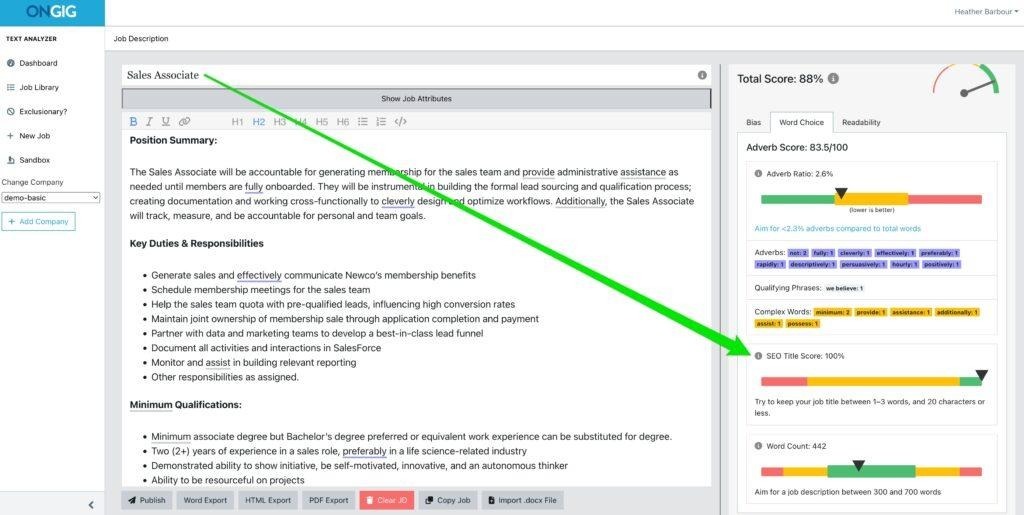
- Job Title Improvement: The tool scans your job titles and compares them to what potential applicants search for. Then the software provides suggestions to improve the job title. For instance, below is a screenshot which Ongig recommends that the person keep their job title between 1 and 3 words. Plus use 20 characters and less.
- Adding Media-Rich Content: The software supports adding images, videos, and any visual content. This strategy boosts the time candidates spend on a page. And it tells search engines that the content is valuable.
- Helps with JobPosting Schema: The tool automatically adds JobPosting Schema, which is the foundation of SEO for job postings. It’s what helps search engines understand your job post structure so they can display the content. It’s simply letting Google know what your role is all about, and it includes structures such as salary range, your organization, employment type, benefits, job title, and more
Reasons Why a Good Job Description Process is Critical
Good JDs are the foundation of a successful recruitment process. But using tools like Microsoft Word and Google Docs disrupts your JD processes. Here’s why you should aim to create a good JD process:
HELPS ATTRACT AND HIRE QUALIFIED CANDIDATES
Good JDs help candidates understand what you need. And this is because a good JD clearly outlines the responsibilities, requirements, and day-to-day activities. For instance, if you write a JD for a product designer and clearly state that one of the requirements you need is a candidate who knows how to use Figma, that’s the type of candidates you’ll attract, not the ones who don’t know how to use Figma.
SETS THE PERFORMANCE EXPECTATIONS
A good JD becomes your best tool during any performance review process. This is because an effective JD sets clear expectations for both the employee and employer. It reduces all conflicts by ensuring everyone knows who’s responsible for what.
BOOSTS EMPLOYEE RETENTION AND ENGAGEMENT
Once employees start their day-to-day activities and find that it’s everything written in the JD, their engagement increases. Because they don’t feel that they’re doing tasks they weren’t aware of before.
BOOSTS ORGANIZATIONAL EFFICIENCY
A good JD drives your organizational efficiency in different areas. For instance, it helps ensure there’s fair pay for everyone in the organization. Plus, it supports workforce planning, so you can understand any roles you’ll need to hire for in the future.
SUPPORTS EMPLOYEE TRAINING AND DEVELOPMENT
An effective JD helps you understand the skills your employees lack, especially during a performance review.
So, you use that as an opportunity to invest in training resources for them.
WHY I WROTE THIS:
Your hiring efforts can’t succeed if you’re using the wrong tools to create your JDs. An effective JD creates the foundation for a successful recruitment process. And our mission at Ongig is to remove guesswork from your JD creation by simplifying the job description management process.
Schedule a demo today to learn how we can help you create effective JDs, simplify the collaboration process, smooth version control and JD approval process, and more
FAQs: What Makes Ongig Different from Popular Text Editors such as Microsoft Word and Google Docs
1. Why can’t we use Google Docs and Microsoft Word for Job Descriptions?
Text Editors such as Google Docs and Microsoft Word aren’t job description management software. They can’t help with ATS integration, guided JD content creation, approval workflows, and collaboration.
2. Why can’t We Use Google Docs and Word for JD version control?
The two tools only provide the version history. But they don’t manage the whole JD version control that involves collaboration and creating approval steps.
3. Why are Folders and Google Drive Not Enough for JDs Storage?
Because folders and Google Drive are not a live database that stores all your JDs like the effective library that JD tools provide. You can’t search and filter to get what you want in minutes.
4. Google Docs and Microsoft Word Provide Content Guidance. Why is that Not Enough?
The two tools only guide on grammar. They don’t show you long sentences, complex words, and biased terms the way a JD tool like Ongig does.
